Getting to Know Inky

Getting to Know Inky
Your Email Safety Helper
A quick, plain-language guide for everyday email users.
What Is Inky?
Inky is an email safety tool. It checks every email that comes into your inbox and looks for tricks that bad actors use, like fake messages (phishing), viruses, and junk mail. When Inky finishes checking an email, it adds a colored bar at the very top of the message. That bar is called a “banner,” and it tells you at a glance whether the email looks safe or risky.
Think of Inky like a traffic light for your email. Green-ish colors mean go ahead, yellow means slow down and look closer, and red means stop. You do not have to install anything. Inky works on your computer, your phone, and any email app you already use.
What You Will Notice
- A colored banner appears at the top of most emails you receive.
- The banner shows who really sent the email and whether they are inside or outside your company.
- Emails from your own coworkers usually will not have a banner.
- At first, you may see more banners than you expect. That is normal (see “The First Few Weeks” below).
What the Banner Colors Mean
Inky uses a few colors to describe each email. Here is what each one is telling you:
Color | What It Means | What You Should Do |
Gray | Inky checked the email and did not find anything unusual. It came from outside your company.  | It is most likely fine. Still read it like normal and use good judgment. |
Blue | The email is from an outside contact your company knows and trusts.
| Treat it as a trusted business contact. Normal caution still applies. |
Yellow | Something about the email is unusual. It may be a first-time sender, a request for personal info, or bulk/marketing mail. It is not always dangerous.
| Slow down. Check who sent it. Do not click links or open files unless you are sure it is real. Report the email as Safe if you think it is a mistake, Spam if you just don't want to receive it, or Phish if you think it is fraudulent. |
Red | Inky thinks this email is dangerous, such as phishing, a fake brand message (like a fake Microsoft alert), or a bad link.
| Do not click links or open attachments. The safest move is to report it using the “Phish” button in the banner. Many red emails are blocked before they ever reach you. |

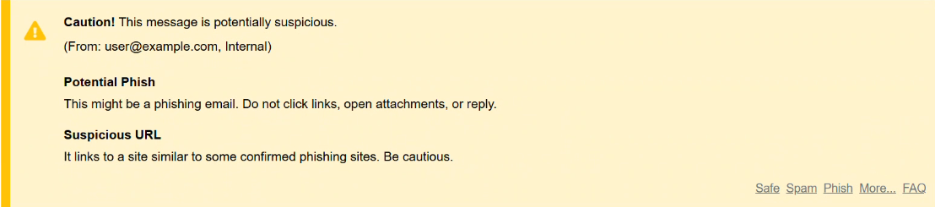
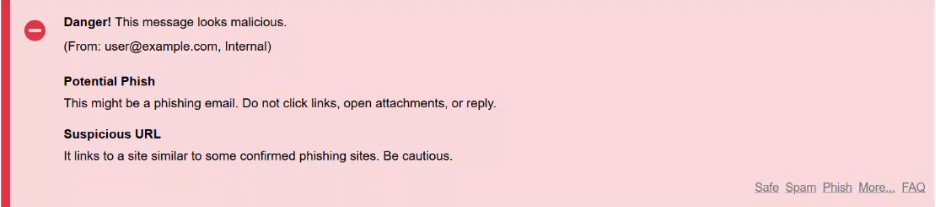
Note: A yellow banner does not always mean an email is bad. It just means “look a little closer before you act.”
What to Do When You See a Warning
When you get a yellow or red banner, take a few seconds to think before you act:
- Look at who really sent it. The banner shows the true email address. Does it match who the person claims to be?
- Ask if the request makes sense. Were you expecting this? Is someone rushing you or asking for money, passwords, or gift cards?
- When in doubt, check another way. Call the person, or ask your IT support team before you click or reply.
- For red emails, just report them. If you truly must open one, clicking a link takes you to an Inky warning page that shows a picture of the website and asks you to confirm first.
The “Report This Email” Button
Every Inky banner has a “Report This Email” link in the lower-right corner. You can also use the quick action links right in the banner. These let you tell Inky what you think an email really is:
- Safe – a good email that got flagged by mistake.
- Spam – junk mail you do not want.
- Phish – a scam or dangerous email.
- Graymail – bulk email like newsletters and ads (not a threat, just clutter).
When you click one, Inky shows a simple screen where you can confirm with one click, cancel, or pick “More Options” for extra choices. Your reports help Inky learn and get better at protecting everyone, so it only takes a few seconds and it makes a real difference.
Your Personal Settings
If you sign in with your Microsoft 365 or Google Workspace account when you report an email, you can manage a few things just for your own mailbox:
- Add a sender to your personal “Allow” list so their emails stop getting flagged.
- Add a sender to your personal “Block” list so their future emails go away automatically.
- Visit your User Dashboard to review quarantined emails and your personal spam settings.
These personal choices only affect your inbox. They do not change anything for your coworkers.
Warning Pages for Risky Links
If you click a link that Inky thinks is unsafe, you will land on a warning page instead of the real website. That page shows a picture of where the link would take you and explains why it looks risky. From there you can choose to go back to safety or, if allowed, continue. This can happen even on a gray email, because a link can turn bad after the email arrives.
Junk and Marketing Email (Graymail)
Marketing emails, newsletters, and other bulk mail are called “graymail.” These often show up with a yellow banner. They are usually not dangerous, but Inky flags them so you can easily spot bulk mail and unsubscribe if you no longer want it.
The First Few Weeks (Learning Mode)
When Inky is brand new, it goes through a period called “Learning Mode,” which usually lasts about 30 days. During this time it is still learning your normal email patterns, so you may see more yellow banners than usual. This is completely normal. The more you use the report buttons, the faster Inky learns, and the number of banners will settle down over time.
A Few Good-to-Know Facts
- You cannot turn banners off or remove them. This is on purpose, so warnings always stay visible.
- Banners disappear when you forward or reply to an email, so outside people never see your internal warnings.
- Inky works on every device and email app, with nothing to install.
- If a banner seems wrong, report it. Real people review phish reports and use them to improve accuracy.
Need Help?
If you have a question that is not answered here, or you are unsure about an email, please reach out to your IT support team. It is always okay to ask before you click.